The Custom Variable Template to get the amount of full days, hours, etc. between the first and the second date or Date.now().
Links
Description
The variable template can help you to build triggers in which you need to compare a date of a previous event with the current date. The date of previous event should be in Unix Time, result of Date.now().
Set Up
- Go to Templates Page;
- Click
Search Galleryin Variable Templates section; - Type
Days, Hours or Minutes Between Two Dates. In the list of templates click on the template; - Click
Add to workspacebutton; - Go to Variables page;
- Click
Addbutton, select the template from the list; - Set variable name;
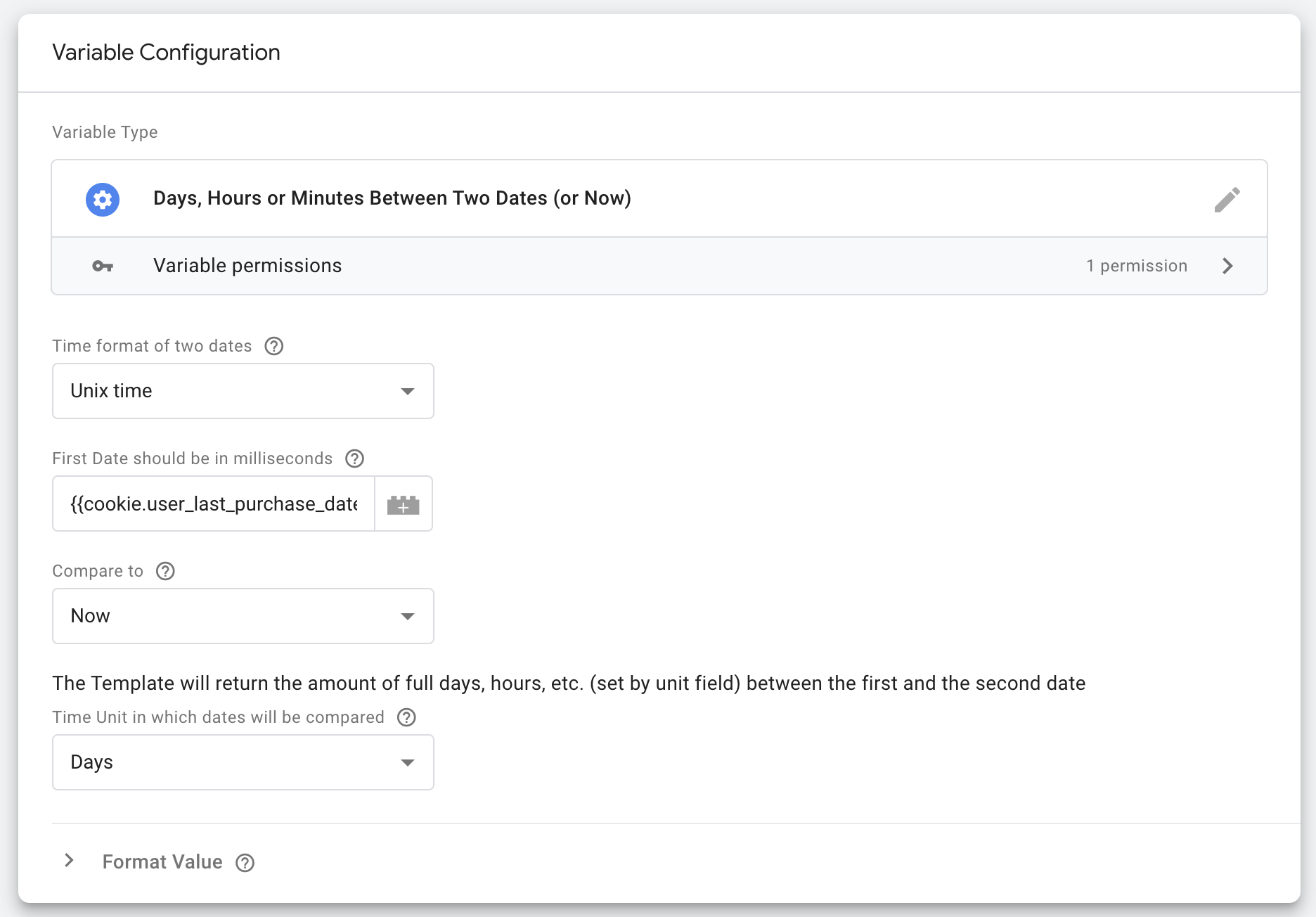
- Set value for
First Datefield. Usually it’s GTM variable contains Unix Time. For example it can be a 1st Party Cookie GTM Variable with the namecookie.previous_event_time. Put the name of the variable like this{{cookie.previous_event_time}}; - If you need to compare with the current time set the
Compare totoNow. If you need to compare with a second date, selectOther dateand put the date or GTM Variable with the date inSecond datefield; - Set the
Time Unit, by default it sets toDays. But if you need to compare dates in hours, minutes or seconds – please changeTime Unitfiled; - Click
Savebutton; - Now you can use the new variable in triggers and compare the value using
greater thanorless thanoperators with a needed amount of days (or other time units based on your setup).
Use Cases
- Create trigger on login event but X days after registrations
- Create trigger on purchase event in the same day as previous purchase
- Create trigger on purchase event but not less than X days after visiting blog